
Operators
An operator is a market the bot places orders on. Every one of them is optional: you pick the markets you want to trade, and the bot only works the ones that are set up.
There are two today, and they are set up in completely different ways:
| market.csgo.com | Steam Market | |
|---|---|---|
| What it needs | An API key | No key — you accept the risk instead |
| On by default | Yes, once the key is in | No. Off until you turn it on |
| Reacts to new listings | Live feed, milliseconds | Polling only, seconds |
| Needs auto-confirm | No | Yes — every order needs a confirmation |
| Games | CS2, Dota 2, Rust, TF2 | CS2, Dota 2, Rust, TF2 |
Steam is both things at once, and the app keeps them apart. The Steam section in the sidebar is custody — signing in, holding your items, confirming trades — and it is required whichever market you trade on. The Steam Market operator card is a trading venue, and it is entirely optional. Turning the venue off changes nothing about the section.
The Operators section in the sidebar lists the markets, each as a card you can expand. A pill on every row says where it stands: Ready, Needs attention, Paused or Not set up. Cards start closed, except a market that needs attention — or, before any market is ready, the ones still to set up — which opens by itself when you arrive. Open as many as you like at once.
Setting up market.csgo.com
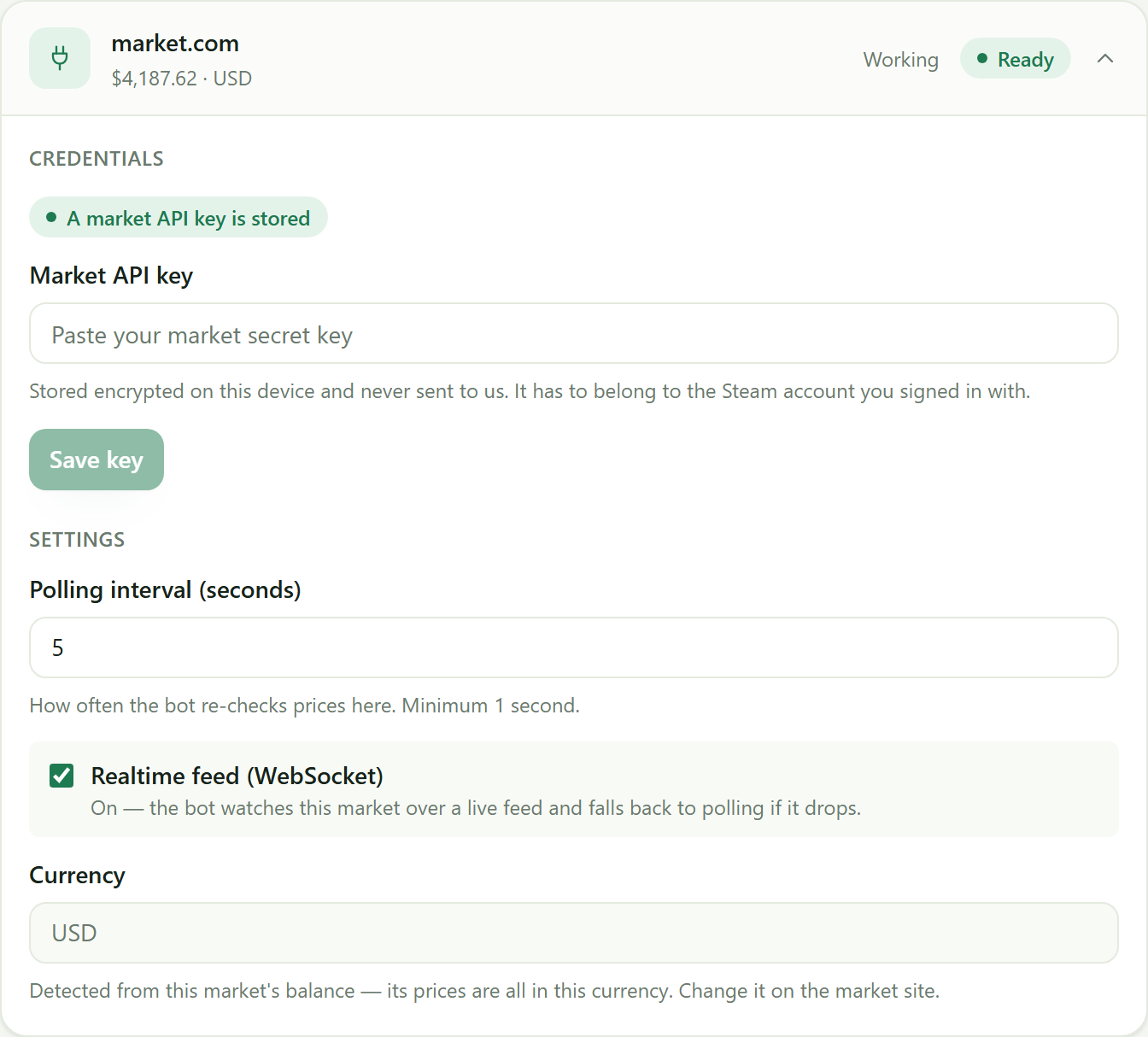
market.csgo.com trades CS2, Dota 2, Rust and TF2 items through a single API key.
- Sign in to market.csgo.com and copy your API key from its API page.
- In the app, open Operators, expand market.csgo.com, and paste it into Market API key.
- Press Save key.
The key is encrypted on your own device and never sent to us. Treat it like a password — it is the market acting on your behalf. It has to belong to the same Steam account you signed in with; the app checks and refuses a key from a different account.
The card then lists whatever else the market wants before it will trade — a Steam trade link, a Steam Web API key, a passed trade check. Each one comes with a Fix this link to where it’s set.
Setting up the Steam Market
This one has no key to paste. What you are setting up is your own consent, because trading here is not a supported thing to do and the app will not pretend otherwise.
Read the card before you turn it on. In short:
- Steam has no trading API. Every other market here is traded through an interface built for exactly that. To trade on Steam the app drives the same private endpoints the Steam Market website uses — undocumented, unsupported, and free to change or close without notice.
- It goes against the Steam Subscriber Agreement, which prohibits automated access to Steam.
- The account at stake is your main one — the same Steam account that holds every item you own. Valve can suspend your Market access or your ability to trade, temporarily or permanently, and nobody can appeal that for you.
- Anything you buy here is locked for 7 days — not sellable, not tradable. This is Steam’s rule for Market purchases, not ours. It makes the Steam Market a hold-and-sell venue, not a flipping one.
Tick the box, press Turn on Steam trading, and the card becomes an ordinary settings panel. You can trade market.csgo.com without ever touching this.
What it needs before it will work
- Steam connected, like everything else.
- Auto-confirm linked — and here it is not optional. Steam asks for a mobile confirmation for every buy order and every listing. If the app is not your authenticator it cannot approve them, so it won’t place them in the first place. Set it up first: Auto-confirm.
- Steam willing to let you use the Market at all. Steam blocks Market access after a password reset, a new device, a recent purchase and several other events. The app reads Steam’s own verdict and, if it’s a no, says so on the card along with the date it lifts. There is nothing to fix on this end — it clears on Steam’s timer.
What’s different once it’s running
- No live feed. Steam publishes nobody else’s listings, so there is nothing to subscribe to — the card has a polling interval and no feed switch. Sniping still works, but it finds a listing on the next poll rather than the instant it appears. If milliseconds are the point, that’s market.csgo.com’s job.
- Steam takes a cut of every sale. The prices you set are what a buyer pays. Steam deducts its fee from that, so what reaches your wallet is less — and the cheapest listing Steam will accept is higher than you might expect, because the fee has a minimum.
- Prices snap to Steam’s wallet increment. Some currencies are priced in whole units, where an ask of 224.50 is simply refused. The app rounds every price to something Steam accepts — down on what you bid, up on what you receive — so you are never quoted a price the venue would reject.
- Repricing costs a confirmation. Steam has no “change the price” button: a reprice is a cancel and a fresh listing, and the new listing needs confirming again. The bot therefore leaves a listing alone unless the price has moved enough to be worth it.
Settings on the card
- Polling interval — how often the bot re-checks prices here. Per market, not one setting for the whole app.
- Realtime feed — on, the bot watches a live feed and falls back to polling if it drops; off, it only polls. market.csgo.com only; the Steam Market has no feed to watch.
- Currency — detected from your balance on that market, and every price for its items is shown in it. Two markets in two currencies sit side by side, each in its own.
How the bot knows which market an item belongs to
You never pick one from a dropdown. Paste an item link into the buy or sell dialog and the app recognises which market it came from, and which game:
https://market.csgo.com/en/…→ market.csgo.comhttps://steamcommunity.com/market/listings/730/…→ the Steam Market
They are different links to different books, and the app treats them as different items — the same skin on two markets is two rows with two prices, which is the point. If no market recognises the link it says so, and if the market it belongs to isn’t set up yet it tells you before you save.
Every row in Buying, Selling and the activity log is tagged with the market it belongs to, and a row whose market is not set up yet carries a badge saying the bot is skipping it.
Do I need a market to get started?
Not immediately. Steam alone is enough to install, sign in and link your authenticator, and the start buttons work without a market — there’s simply nothing to trade until one is ready. The sidebar shows Operators · 1 ready once one is.