
Setting up buying & selling
The bot only ever touches items you put on a list. Nothing is automatic until you add something.
Adding an item to buy
Open Buying and press Add item. You can add several items in one go:
- Paste a market link. It turns into a card right under the box and loads there, and the box clears so you can paste the next one straight away. Pasting a whole column of links at once works too.
- Each card shows base price, max price and quantity, already filled in from the market. More settings opens the rest for that card. You can edit a card while the others are still loading.
- A link that isn’t an item page (the store’s front page, another site) never becomes a card. It stays in the box in red with the reason, so you can fix it.
- A link that’s already on your list, or pasted twice, gets a warning but is still added.
- Press Add N items to add them all. Anything the market refuses stays as a card with the reason, so you can fix it or remove it; the rest are added.
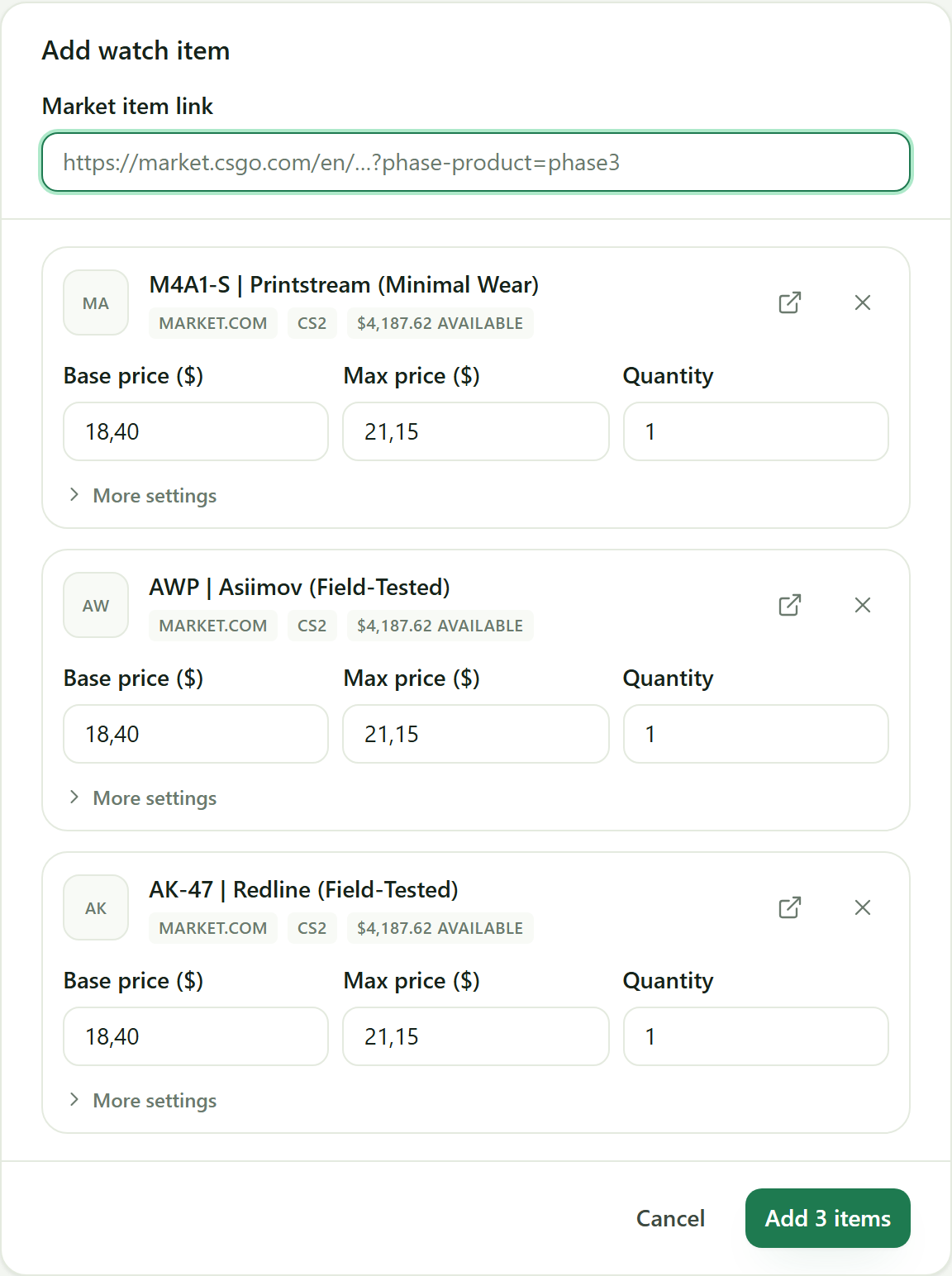
Each item has these settings:
- Market item link — paste the item’s page URL from the market you trade on: a
market.csgo.comitem page, or asteamcommunity.com/market/listings/…page. Which market it is, the game, and for Doppler knives the phase are all read from the link automatically. The same skin on two markets is two separate rows with two separate prices. - Base price — the bid the bot holds when nobody is competing with you. Think of it as your standing offer.
- Max price — the ceiling. The bot will never pay above this, whatever the market does.
- Price step — how much to outbid a competitor by when it needs to raise your bid. A new item starts at the market’s smallest step: 0.001 on market.csgo.com for a USD or EUR account (prices there go to a tenth of a cent), 0.01 otherwise.
- Quantity — how many copies you want. The bot stops when it has them. You can also change it on the list row with − / +, or type a number (Enter saves, Esc cancels), even while the bot is running.
Then three switches decide how it competes:
- Snipe instantly — on top of holding an order, buy any listing that appears at or below your snipe price outright. This is the fast path: on market.csgo.com new listings are grabbed in milliseconds off its live feed. On the Steam Market there is no feed to watch, so a snipe is found on the next poll instead — seconds, not milliseconds. Off means orders only, and you wait for the cheapest fill.
- Cap at max price — keep the bid from ever going above your max. Leave this on unless you know why you’re turning it off.
- Undercut competitors — bid exactly one step above the top competitor rather than sitting at your base price, so you win as cheaply as possible.
Press Add N items and they start being watched immediately.
Reading a buying row
Each row shows the numbers the bot is acting on:
- Current price — what the item is listed for right now.
- Base / Max — your two prices.
- My bid — where your order actually sits at this moment.
- Top bid — the best competing order.
- #1, #2 — your position in the order book.
#1means you’re first in line to be filled. - 1 LEFT — how many more copies you still want.
Toggle Watching off to pause an item without deleting it.
Adding an item to sell
Open Selling and press List item. You can only sell what’s actually in your inventory.
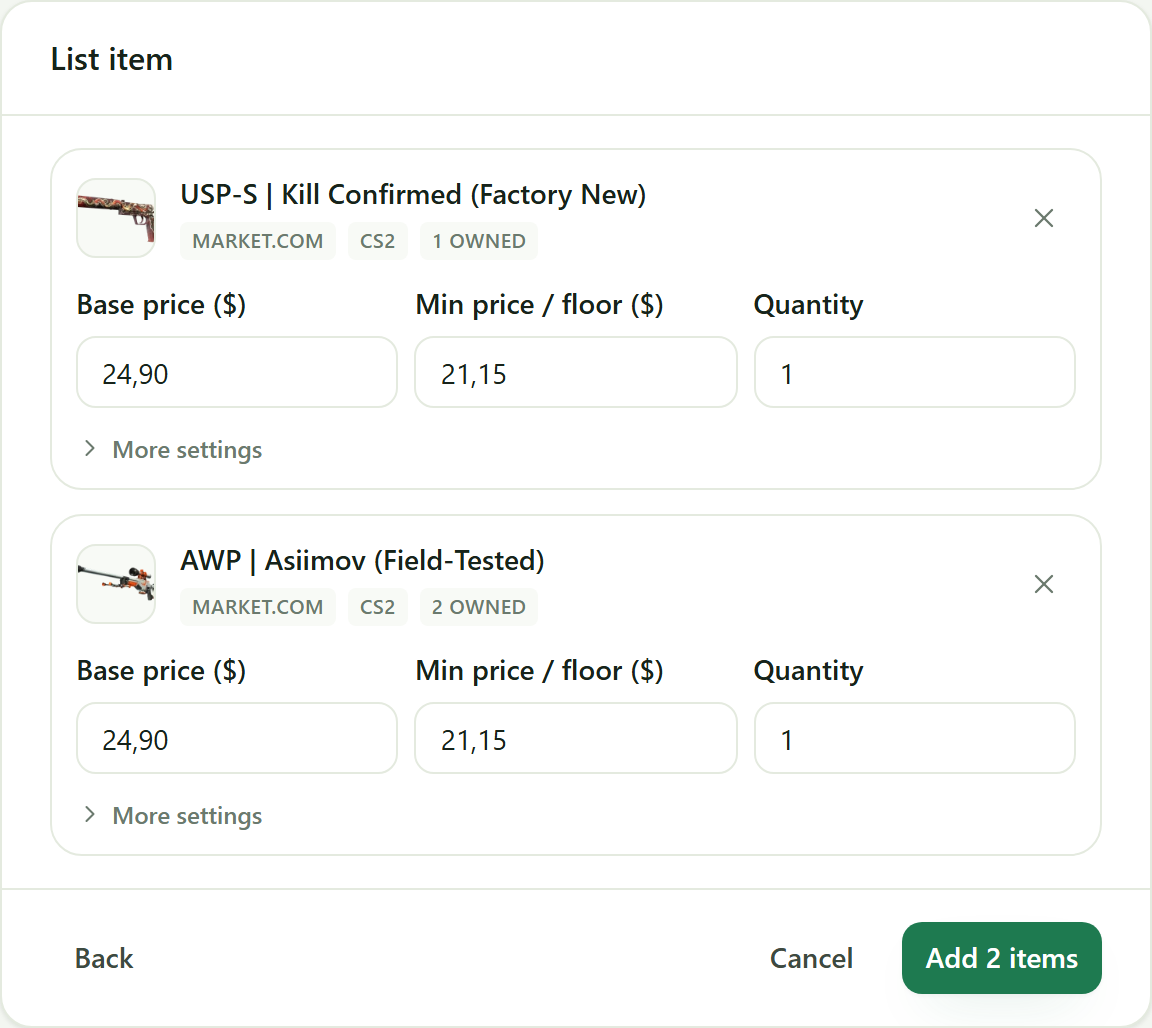
- Tick the items you want to sell, as many as you like, and press Next. Each one becomes a card with base price, min price and quantity filled in from the market, and More settings for the rest. Back returns to your inventory with your picks and edits kept. Press Add N items to list them all. If you hold items on more than one market, tabs at the top pick the market. If that market holds more than one game, chips under them narrow the list to one game — All games shows everything.
- Base price — the price the bot holds when it’s already the cheapest.
- Minimum price — your floor. The bot will never list below this, so set it where the sale stops being worth it.
- Price step — how much to undercut the next-cheapest seller by. Starts at the same default as on the buy side: 0.001 on market.csgo.com in USD or EUR, 0.01 otherwise.
- Quantity — how many copies to keep listed. Editable on the row, as on the buy list.
Then two switches decide how it competes:
- Cap at min price — keep the ask from ever dropping below your minimum. Leave this on unless you know why you’re turning it off; with it off the only floor left is the market’s own.
- Undercut competitors — also climb above your base price when the cheapest other seller is priced higher than it, listing one step under them. With a base of 0.11, a 0.001 step and the next seller at 0.122, you get listed at 0.121 instead of 0.11 — same first place, more money per sale. Off, your base price is a hard ceiling. New listings have this on.
The bot keeps your ask one step under the cheapest other seller, moving it both ways: down when somebody undercuts you, and back up again when they leave or reprice. It never goes below your minimum, and never above your base price — so with a rival above your base you rest at base, and with nobody in reach at all you rest at base too. Undercut competitors removes that upper limit, and only that: your ask still tracks one step under the next seller, but now it can climb past base, so a lone seller far above you will park your ask just under theirs. A seller priced below your minimum is out of reach and ignored either way. The row shows My ask against Lowest ask so you can see whether you’re first in line.
Every price here is what a buyer pays. Each market takes its cut out of that, so what lands in your balance is less than the number you typed — on the Steam Market noticeably so. Set your minimum against what you want to receive, not what the row displays.
On the Steam Market, two more things shape the sell side. Anything you bought there is locked for 7 days and cannot be listed until that clears. And Steam has no reprice — changing an ask means cancelling the listing and creating a new one, which needs another mobile confirmation — so the bot holds a listing still unless the price has moved enough to be worth the round trip.
Copying a list to another profile or PC
Next to Add item (on Selling, List item), are three icons for the whole list — hover one for its name: Export (arrow pointing up, out of the app), Import (arrow pointing down, into it) and Clear all (bin). Export and Clear all only show once the list has items.
- Export saves the list of the profile you’re viewing to a file you choose, named like
skinauto-buying-Main-2026-10-04.json. It’s plain text with no keys or passwords in it, so it’s safe to keep or share. - Import replaces the whole list with the items in a file — anything not in the file is removed, after you confirm. A Buying file only imports on Buying, and a Selling file only on Selling.
- Every item comes back exactly as exported: its prices, options, on/off state and remaining quantity (a buy item that has already bought 2 of 5 comes back with 3 to go).
- The file is checked before anything changes. If one item is invalid — say a price was edited to zero — nothing is imported, and the app names the item.
- You can import while the bot is running. Orders and listings for items that aren’t in the new list come down on the bot’s next pass, and the new items start trading straight away if they’re switched on.
- Items for a market you haven’t set up in this profile, or priced in a different currency from your account, are imported but sit idle, the same as any other item in that situation: the bot skips them until the market is set up or the currencies match.
To move everything — your Steam authenticator and every profile’s lists — to a new PC, use the encrypted backup instead; see Can I move to a new computer?.
Starting and stopping
Buying and selling are separate — each has its own Start / Stop in the sidebar. Stopping halts new activity immediately; anything already in flight is left in a safe state.
The Activity strip along the bottom logs everything the bot did, with price, time and outcome.
A buy that lost its connection mid-request shows as Checking with market. The market may have bought the item before the connection dropped, so the bot counts it against the item’s quantity and won’t buy it again. Within a few minutes the app asks the market and the row changes to Purchased, or to Failed with the quantity given back.
Before you go live
Start small: one item, a quantity of one, and a max price you’d be happy to pay. Watch the Activity strip until a buy goes through the way you expected, then widen the list — the cheapest way to catch a max price with a misplaced decimal point.