
Auto-confirm & trade confirmations
This is the optional step. Read it before you switch it on — it changes something about your Steam account, and one part of it can’t be undone quickly.
Coming from CounterBot or Steam Desktop Authenticator? The app imports your .maFile — the same authenticator you already have, so there is no trade hold and nothing to re-link. Jump to Coming from CounterBot or SDA.
The problem it solves
The markets the bot trades are escrow markets: your items stay in your Steam inventory until they sell. When a trade happens, Steam requires a mobile confirmation — normally you tapping “approve” in the Steam app — within a few minutes. Miss the window and the trade fails, the sale reverts, and the market can penalise you.
Without auto-confirm, the bot can find deals, bid and list all day, but you still have to be at your phone for every trade. Auto-confirm hands that job to the app.
On the Steam Market it is not optional at all: Steam wants a confirmation for every buy order and every listing, not just for the trade at the end. Without the app as your authenticator there is nothing to approve them, so it will not place them.
Switching it on
Open Steam in the sidebar. Once Steam is connected you’ll see the opt-in:
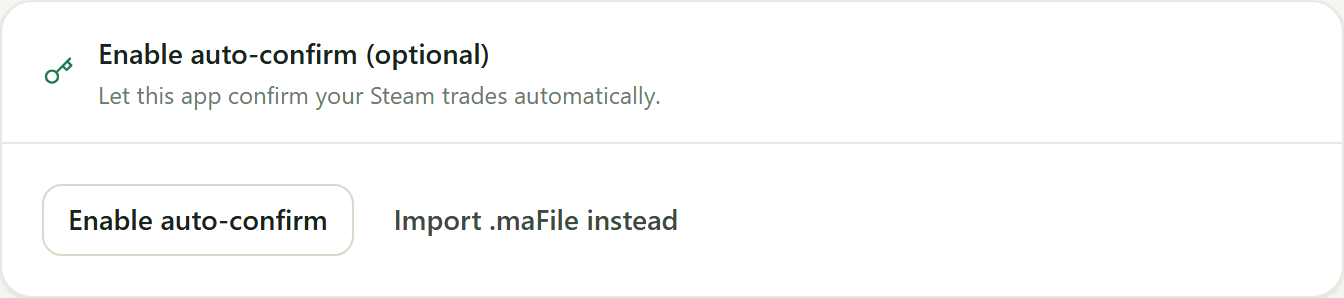
Press Enable auto-confirm and the app tells you exactly what you’re agreeing to:
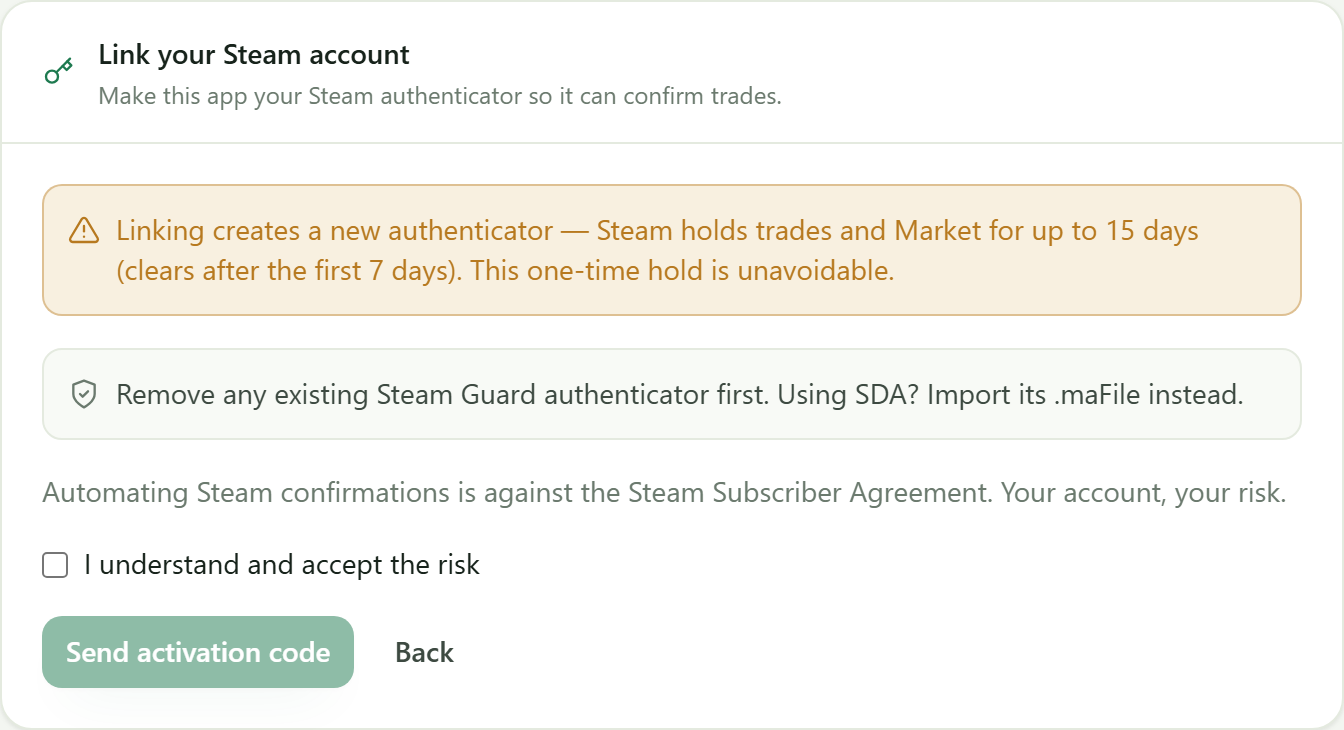
Two things there deserve your attention.
The trade hold. Steam ties trade holds to the authenticator, not the device. Making this app your authenticator is adding a new one, so Steam holds your trades and Market listings for up to 15 days, clearing once the authenticator has been active for 7 days. This happens with any new authenticator — moving to a new phone does it too. It is one-time and unavoidable when you link a new authenticator, and it’s the real cost of the feature — unless you already have one in SDA or CounterBot, in which case import it and there’s no hold.
The rules. Automating Steam confirmations is against the Steam Subscriber Agreement. It’s your account and your risk, and the app says so rather than hiding it.
If the account already has a mobile authenticator, Steam won’t add a second one, and it never removes the old one for you. The app stops with a message saying so. Remove it first in the Steam mobile app (Steam Guard → Remove Authenticator). If it lives in SDA, don’t remove it: go back and import its .maFile instead, which keeps it and skips the hold.
After you accept, Steam sends an activation code (by email, or SMS if your account has a phone). Enter it and the app becomes your authenticator.
Coming from CounterBot or SDA
If you already confirm trades with Steam Desktop Authenticator — which is what CounterBot runs on — you have a .maFile, and that file is your authenticator. Import it and the app takes over that same authenticator. Steam sees nothing new, so there is no trade hold: you can keep selling from the first minute.
- Open Steam in the sidebar and sign in exactly as usual. Steam asks for a Steam Guard code — read it from SDA as you always do.
- Instead of Enable auto-confirm, press Import .maFile instead.
- Choose the
.maFilefrom SDA’smaFilesfolder. It’s named after your SteamID, like76561198000000000.maFile. - If you turned on encryption in SDA, the app asks for two more things:
manifest.jsonfrom the samemaFilesfolder, and your SDA passphrase. The app decrypts the file itself — you don’t need to turn encryption off. - Accept the terms, then press Import authenticator.
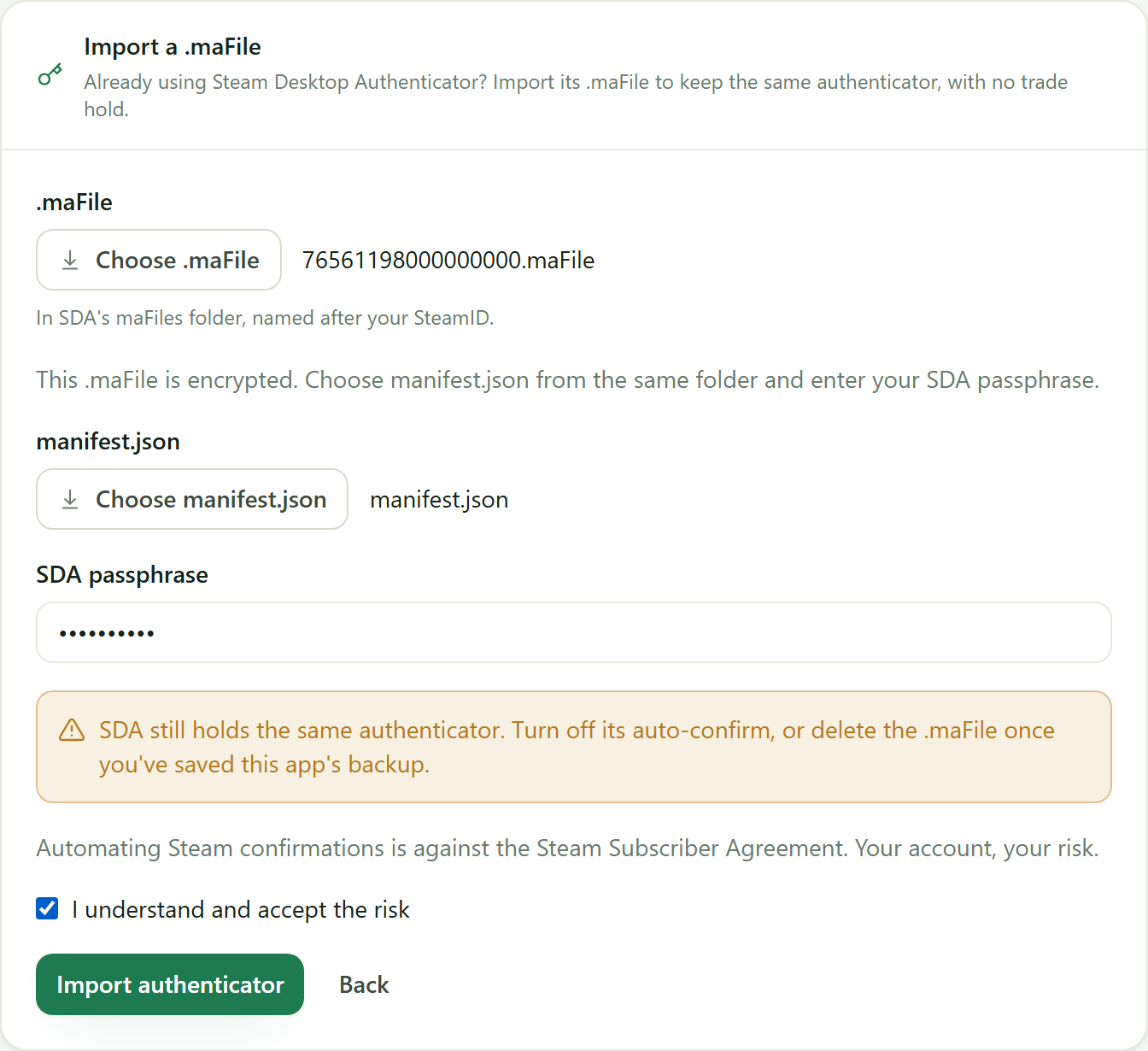
Before saving anything, the app checks the file belongs to the Steam account you signed in with, and asks Steam to accept its secrets. If either check fails, nothing is stored and you’re told why — most often the file is out of date because the authenticator was removed or replaced since. A file without a revocation code is refused, because without one the authenticator could never be removed again.
After the import:
- The app never reads the
.maFileagain. It copies what it needs once, and from then on it’s your authenticator exactly as if you’d linked it here. You still save the two backups below, and moving PCs later uses this app’s own backup. - Turn off auto-confirm in SDA or CounterBot. Both now hold the same authenticator. If SDA keeps auto-confirming, it may approve an offer this app would have held for you to check.
- Consider deleting the plaintext
.maFileonce you’ve exported this app’s backup — anyone holding that file can approve your trades.
Save your backups — the app makes you
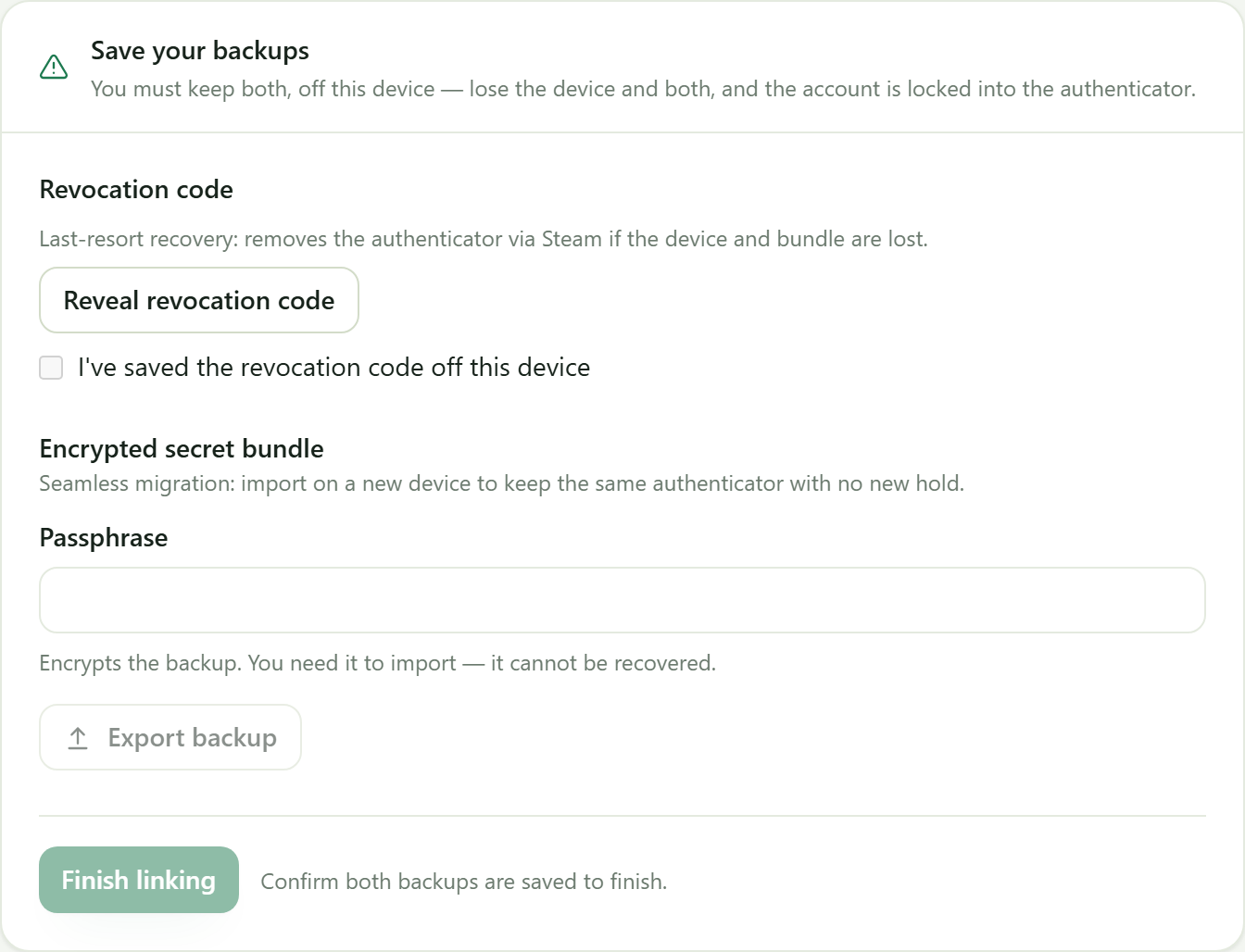
You cannot finish without both:
- Revocation code — removes the authenticator from your Steam account if everything else is gone. Save it somewhere that is not this PC.
- Encrypted secret bundle — choose a passphrase and export the file. This is how you move to a new machine later without a fresh 15-day hold. The passphrase cannot be recovered, so keep it with the file.
Lose the device and both backups and the account is stuck on an authenticator you can’t reach — recovering it means going to Steam support. This is why the app refuses to move on until you confirm.
Delivering a sold item
Confirming a trade and creating one are two different jobs, and a sale needs both.
On market.csgo.com your buyer is another player, not the market. Nobody sends you anything to approve — the item is in your inventory, so you have to offer it to them. The market just tells your app who the buyer is and hands it a tracking code to attach.
Roughly every 20 seconds the app asks the market which sold items are still waiting and sends the Steam trade offer to each buyer, with auto-confirm on or off. Steam then wants a mobile confirmation for every offer that gives an item away.
With auto-confirm on, the app confirms it too. You don’t have to be watching.
With auto-confirm off, the offer is sent but waits for you to confirm it in your Steam mobile app. That matters more than it sounds: the market gives you a countdown, and if it runs out the sale is cancelled, the money goes back to the buyer, and you collect penalty points. So if you list items and walk away, turn auto-confirm on.
If a send fails — the buyer’s inventory is private, their trade link has gone stale, or Steam is having a bad day — you get a desktop notification naming the reason, and it keeps retrying while the countdown allows. Deliver that one by hand on the market site if it keeps failing.
One cause is worth knowing, because only you can clear it: Steam will not trade an item that one of its own Market listings is holding. If you list the same copy on both the Steam Market and another market and it sells on the other one, every delivery attempt fails until you remove the Steam listing.
Receiving an item you bought
When the bot buys on market.csgo.com, the seller sends you a Steam trade offer for the item. Someone has to accept it.
With auto-confirm on, the app accepts it for you. Every 20 seconds or so it asks the market about the bot’s purchases from the last half hour, and accepts an offer only if all of these hold:
- the market names it as the offer for one of those purchases;
- it hands you the exact item the market says you bought;
- Steam still shows it as open;
- it asks you to give nothing.
An offer that asks for even one of your items is never accepted, however well it matches a purchase. The app logs it as not accepted, and you decide in Steam whether to accept or decline it.
With auto-confirm off, nothing is accepted. Accept the offer in Steam yourself.
The seller has five minutes to send the offer. If they don’t, the market cancels the purchase and refunds you — that isn’t something the app can speed up. Once the offer arrives the window to accept can be under two minutes, which is why leaving this to the app matters.
What it will and won’t approve
The app never blindly approves what Steam puts in front of it. For every pending confirmation it checks the Steam trade offer against the market’s own list of trades it created:
- It matches — the trade is confirmed automatically.
- It doesn’t match — a phishing offer, an account-recovery prompt, a trade you started yourself — it is held, never auto-approved, and waits in the app for you to allow or deny it.
Approving a held trade yourself
A dot appears on the Steam sidebar item when something is waiting on you. Held confirmations collect in a Needs review panel above the log, each with an Allow and a Deny button:
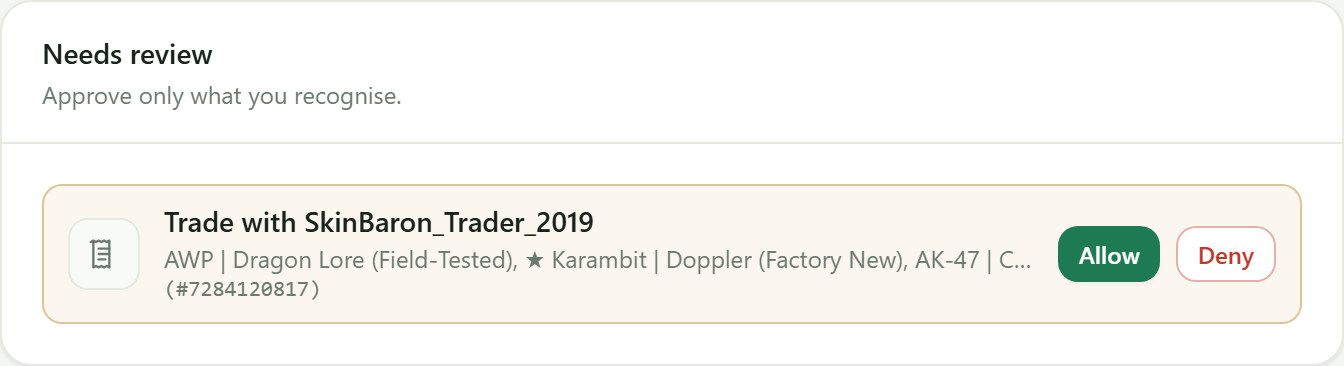
You get who is asking, the Steam offer id, and the items involved. Neither button acts straight away; both ask you to confirm first, and spell out what happens:
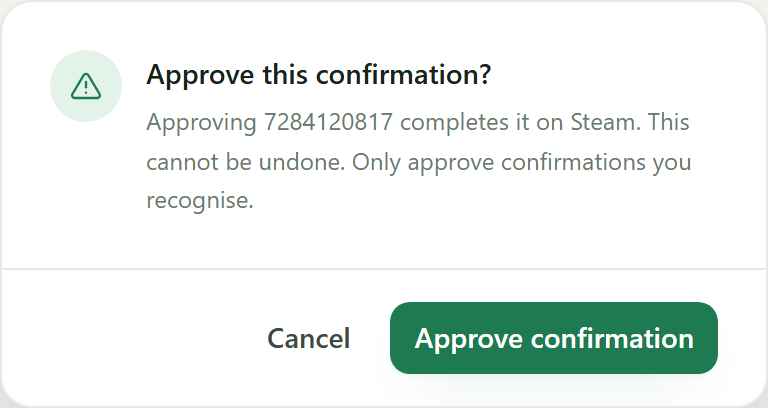
Allow sends the Steam confirmation, exactly as if you’d approved it on your phone. Deny cancels it. Both are final — Steam has no undo — so approve only offers you actually recognise. Anything you don’t act on simply expires on Steam’s own timer, which is the safe outcome.
Confirmations the bot raised itself — a Steam Market buy order, a listing it just created — never reach this panel. It knows it asked for those and approves its own, so Needs review only ever holds something it did not expect.
Everything that happened, automatic or manual, is logged below:
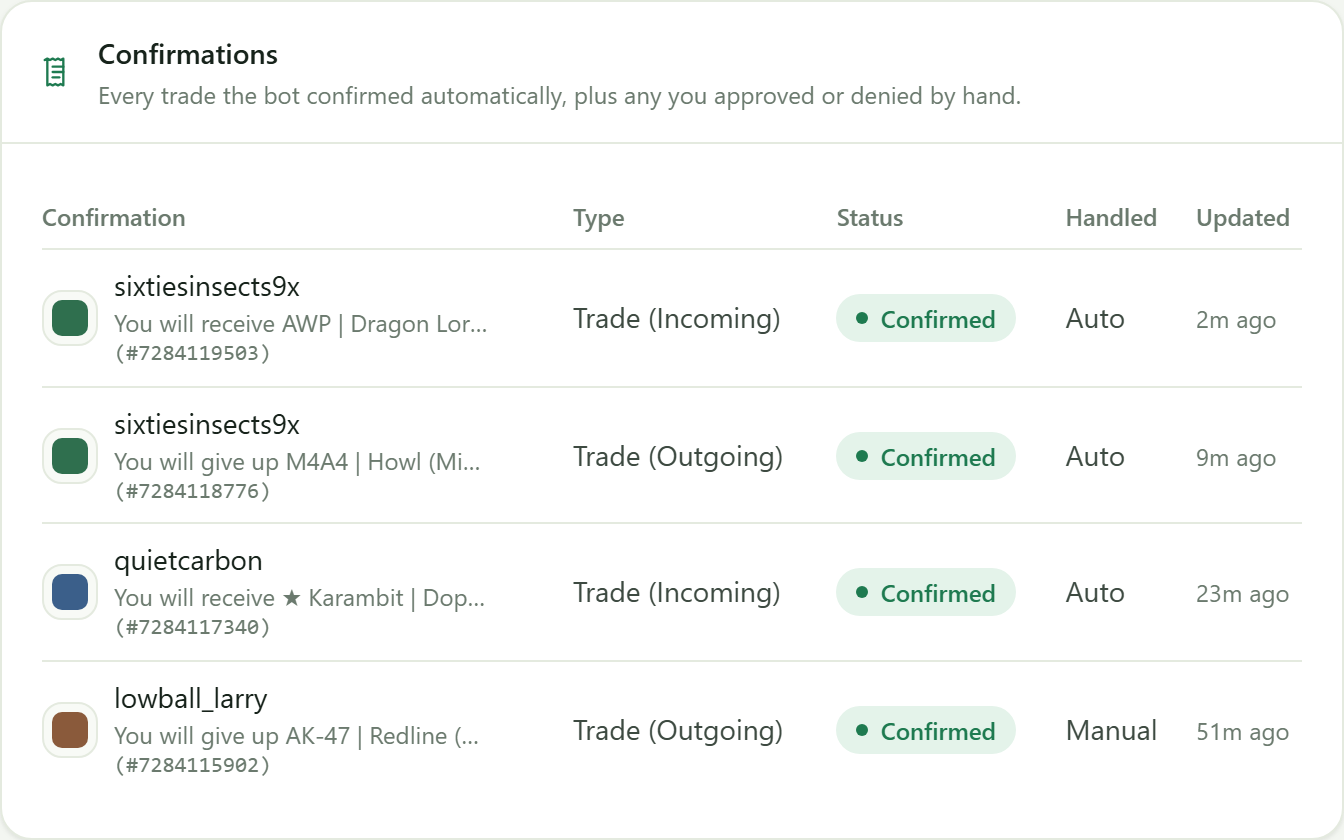
The How column is the useful one: Auto means the app matched and confirmed it; Manual means you approved it by hand.
Your Steam login codes
Because the app is now your authenticator, your phone no longer generates your Steam Guard codes — the app does. The Steam section shows the current code and the seconds until it rotates, so you can still sign in to Steam anywhere else.
Moving to a new PC
Install the app, sign in, then import your bundle under Settings → Device backup. Same secret, same authenticator, no new hold. Re-linking from scratch instead would mint a new secret and start another 15-day hold — so import, don’t re-link.
It is all or nothing
There is no switch for this. Auto-confirm is on whenever the app is your authenticator, and off whenever it is not — linking is the choice. The app also needs it that way: Steam asks for a mobile confirmation for every buy order and every listing, so a bot that had to ask you first could not place them at all.
If you want to approve trades by hand, unlink — see Turning it off below.
What the app never does unattended is approve a confirmation it cannot match to a trade one of your markets created. Those always wait for you, and you handle them the same way as any held trade, below. Steam’s own countdown still applies, so one left sitting will expire.
Turning it off
Unlink from the Steam section using your revocation code. Your Steam account reverts to email Steam Guard, and automatic confirmation and automatic delivery both stop. Unlinking removes the authenticator from Steam itself, so if you imported it from a .maFile, the copy in SDA or CounterBot stops working too. The bot still finds deals, bids and lists — but every sold item is yours to send and every trade is yours to approve, inside the market’s countdown.