
Connecting Steam
Steam is the connection the bot cannot run without. Every skin it buys or sells lives in your Steam inventory and Steam confirms every trade, so the app signs in to Steam whichever market you trade on.
Where orders actually get placed is a separate choice — see Operators. Steam can be one of those markets too, but that is a deliberate opt-in and nothing here turns it on.
Signing in does not let the bot approve trades. That’s a separate, optional step: Auto-confirm.
Sign in to Steam
Open the setup panel on first launch, or Steam in the sidebar, and choose how to sign in:
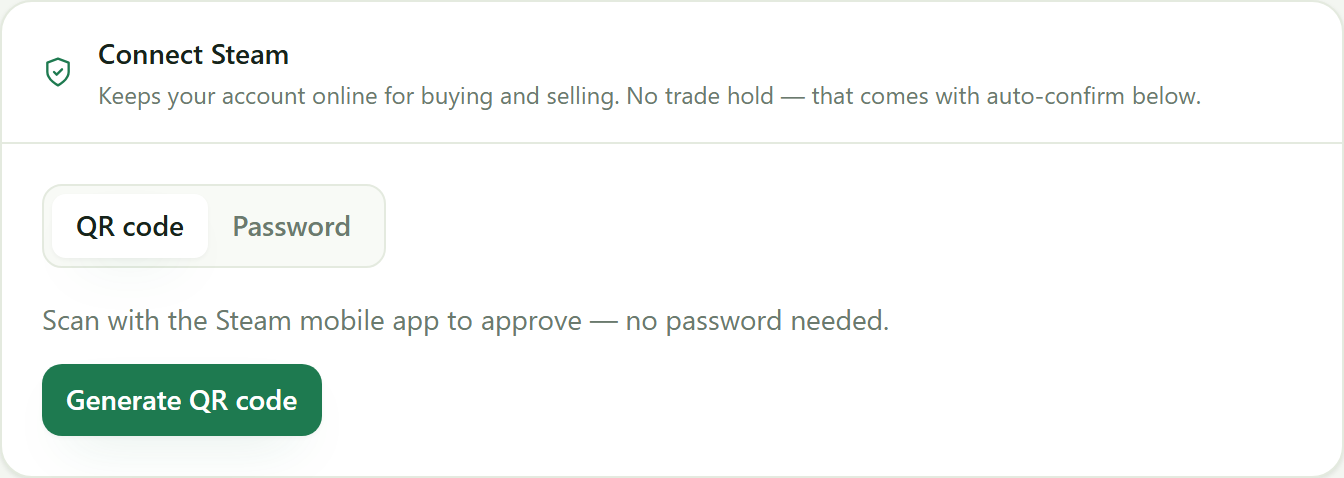
- QR code — generate one and scan it with the Steam mobile app. Nothing to type, no password entered on the PC.
- Password — enter your Steam login and password, then the Steam Guard code Steam sends you.
Either way the app holds a Steam session, which is also what keeps your market account online: markets only fill trades for sellers whose Steam session is live. This does not create a trade hold and does not change how you approve trades — you still confirm every trade yourself on your phone, as usual.
One machine at a time
Your subscription runs one copy of the app, and the lock follows the Steam account you link. Link the same Steam account on a second machine and the first one stops trading — deliberately, so two copies never bid against each other on the same inventory.
What you’ll see when it’s done
The Steam indicator at the bottom of the sidebar turns green, and the Buying and Selling start buttons become usable. Beside it, Operators · 1 ready tells you how many markets are set up — the bot starts without one, it just has nothing to trade yet.
Keeping it safe
- Your Steam secrets are encrypted on your device, per account. We never receive them.
- Don’t share your screen while signing in.
Troubleshooting
Steam keeps dropping. Steam expires sessions periodically. If you’ve turned on auto-confirm the app renews itself; otherwise sign in again from the Steam section.
“Account claimed elsewhere.” The same Steam account was linked in another copy of the app, which takes the lock. Link it again on the machine you want to keep.
More answers in the FAQ.